
Tasks
Let's take a deep dive into how Tasks works. It can be as simple - or as advanced - as you like!
At its simplest all you have to do is click the blue square on the bottom left to open the Ink input area. This works either on the home screen or in Tasks view.
Then write in the bottom section and click the blue + to add your task. Your task will be added to your list! Note here you can also add audio or even text, change the color and add label.
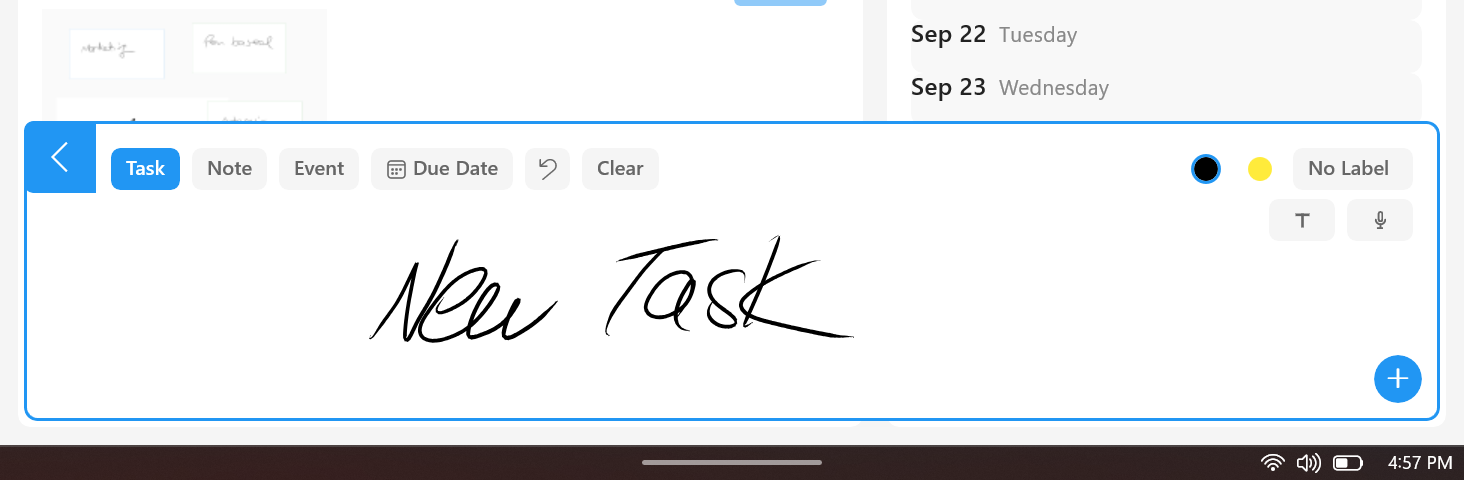
However, there are many options in the Tasks view to help you edit and manage your tasks. Let's go through them in detail.
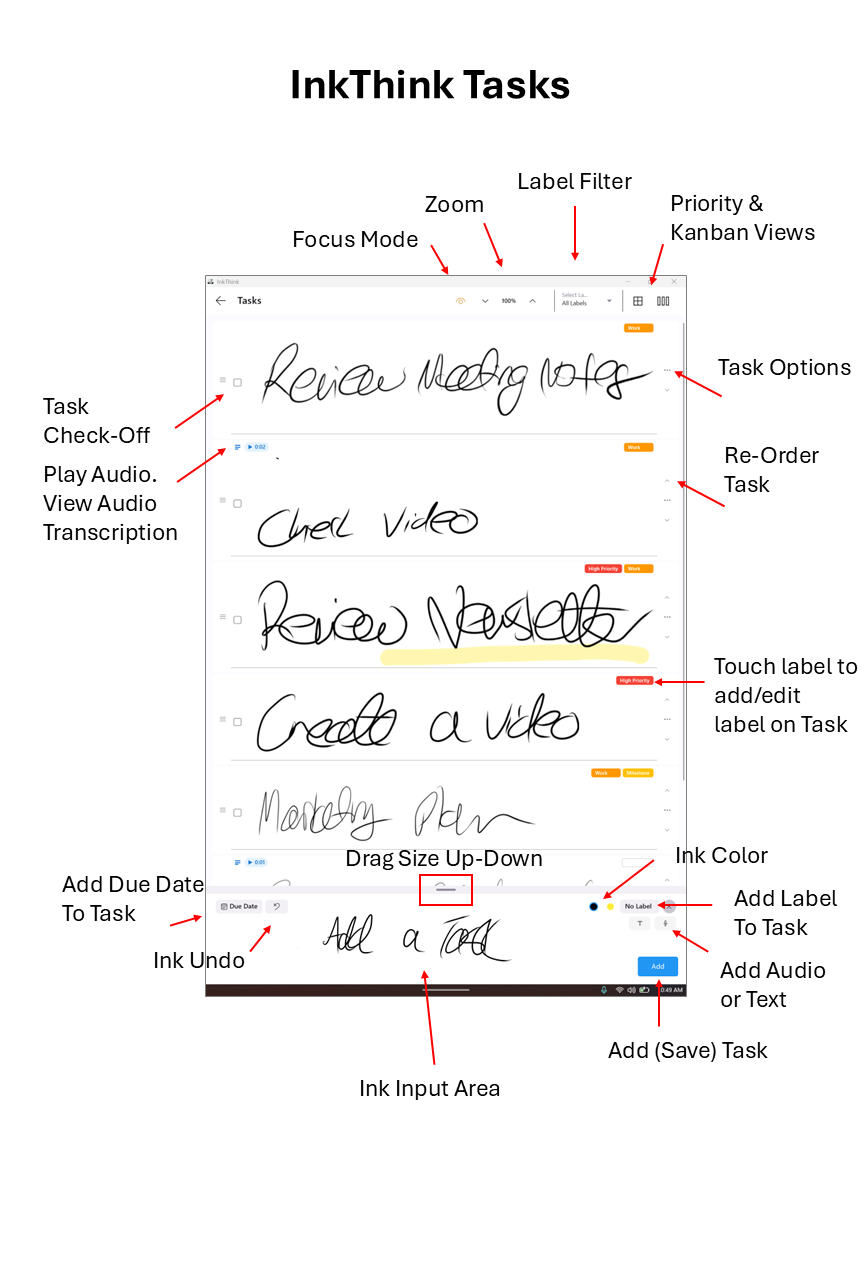
Adding a Task
You draw in this area. After you draw your first stroke with your pen the Undo icon will activate. Furthermore you can also add a Label to your task. When you click the label icon in the ink input area the Label popup will appear. In this view you can only add 1 label but you can add more later. When adding a new ink task you can also set a due date for a task. You can also re-size the ink input area by dragging the handle at the top of the ink input area, if you want more or less vertical space. This can be helpful depending on your device.
Note; Tasks with due dates can also be shown on your Calendar. This is a Pro feature and requires the PRO subscription.
Once you have added a task and it shows in the list, you can click the top-right area of the task. If you already added a label, it will show here. If you have not yet added a label it will show a light grey outline. You can touch that and the label popup will appear. You can add more than one label to a task by clicking on the labels to select what you want (or touching again to unselect). Your selected label/s have a border. If you click the label again to unselect it, the border disappears. See the separate article about Labels.
When adding a task you can also select the ink color. This is defined by the color icon.
Viewing and Managing Tasks
You can move tasks up and down the list by clicking the up/down arrows on the left of each task.
You can 'complete' a task by clicking the check-box icon on each task. This actually gives you 2 choices - to fully delete the task or to just mark it with a check-box as complete - in case you want the visual satisfaction of seeing your tasks being completed!
If you have added labels to your tasks to categorize them, you can filter your view by using the Label filter at the top. This is also a PRO feature.
Depending on your device, the ink on the page might look small. We've added a zoom button so you can zoom the view to your preference.
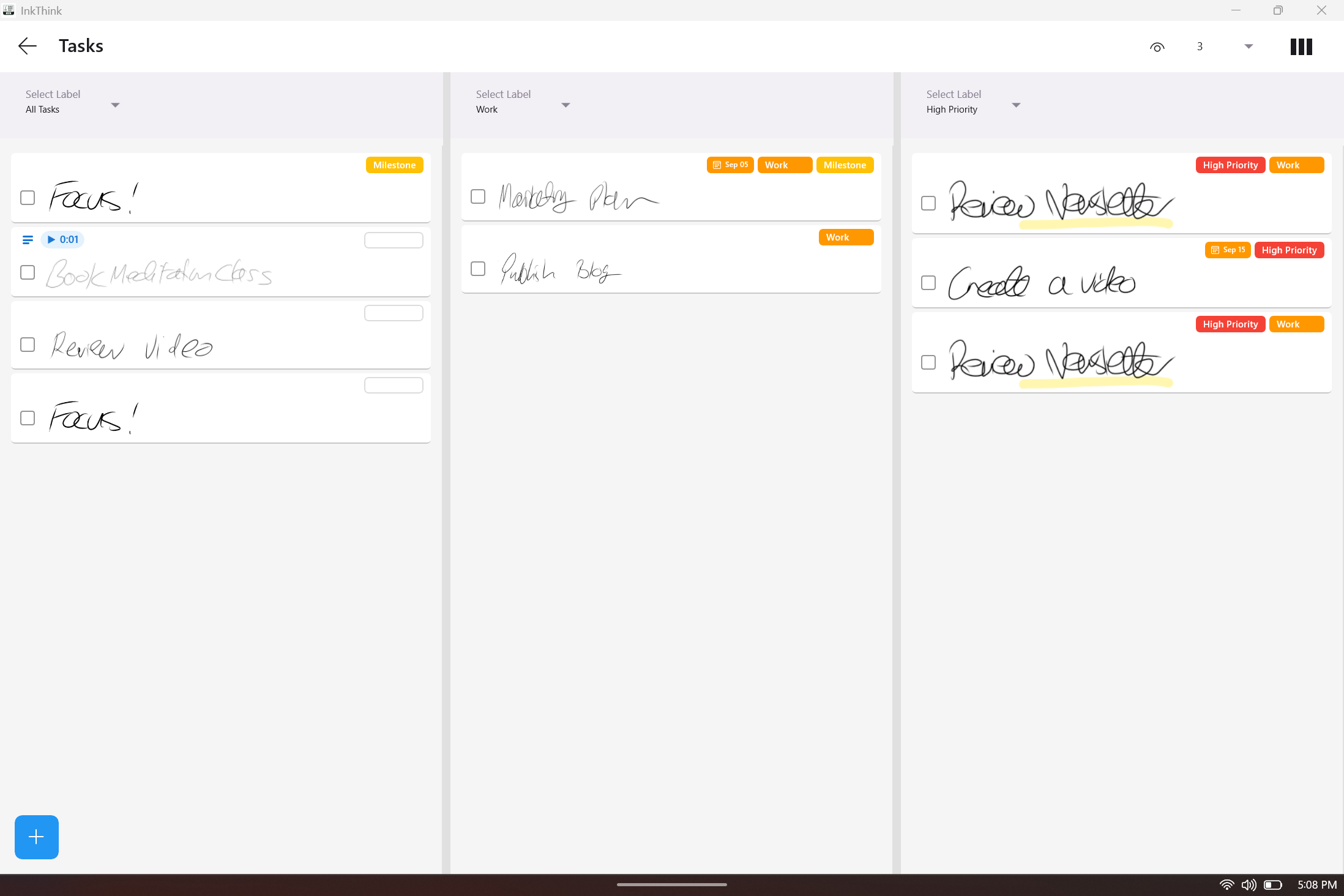
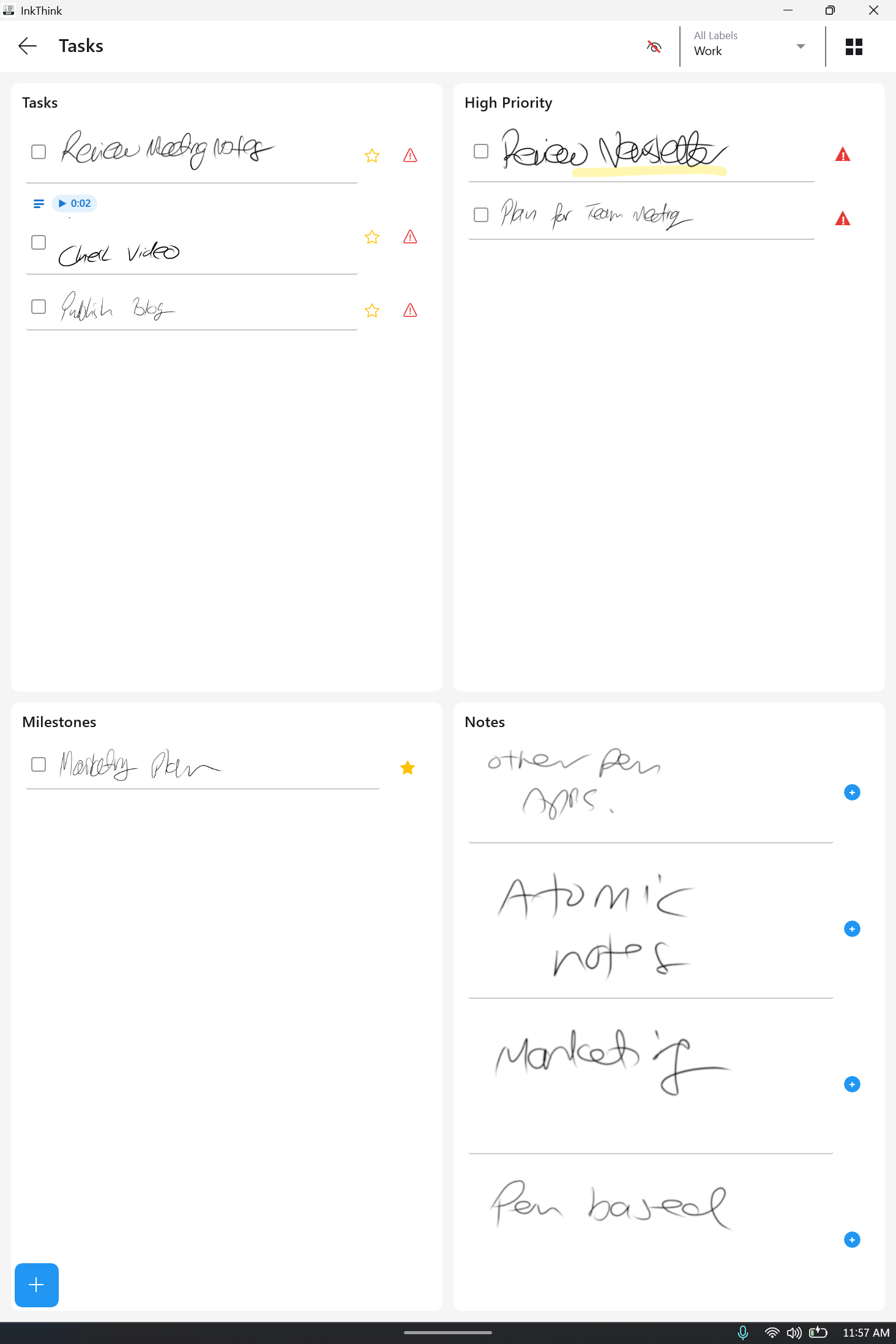
We also allow you to view your Tasks in multiple columns - 'Kanban' view style When you click the icon it will go into that mode. This is also a PRO feature.
Task Options
In Task Options you have the following options:
Edit - will allow you to edit the ink task - the ink will re-appear in the ink input area
Set Label - another way to set a task label
Set Due Date - set a due date for a task. The due date also shows on the task next to the label
Share - Share the ink task as a PNG image (e.g. if you want to share to a friend or to another app)
Move To Top - Moves the task to the top of the list
Move to Bottom - Moves the task to the bottom of the list
Delete - Permanently deletes the task
Focus Mode
If you have a lot of tasks in your list, it's helpful to have a 'clean sheet of paper' to think and focus as you write down your new tasks. Perhaps its the start of the morning as you plan your day, or you're thinking about a new project. Clicking the Focus icon temporarily clears all your tasks and allows you to add new tasks for that moment. When you click the Focus icon again, all your tasks appear as normal. Focus Mode is also a PRO feature.