Home Screen
The app launches in the home screen. It has navigation icons at the top, along with sync and settings icons. The main section is divided into 4 parts:
- Top Tasks - lists out your tasks and you can swipe to scroll through them. You can also click the 'check' box to check-off and complete a task.
- Recent Notes - shows your most recent notes (from either Notebooks or Canvases) that you've taken in order of most recent first.
- Upcoming - shows your calendar items up to the next 30 days.
You can also see an 'eye' icon each section - in the case of Top-Tasks and Notes it will collapse those sections so you can see more tasks or notes. in the case of Upcoming it will hide any blank days and only show upcoming events.
The + symbols take you to the appropriate tasks/notes and calendar views to add your entry. The + sign on InkPad adds a new blank InkPad.

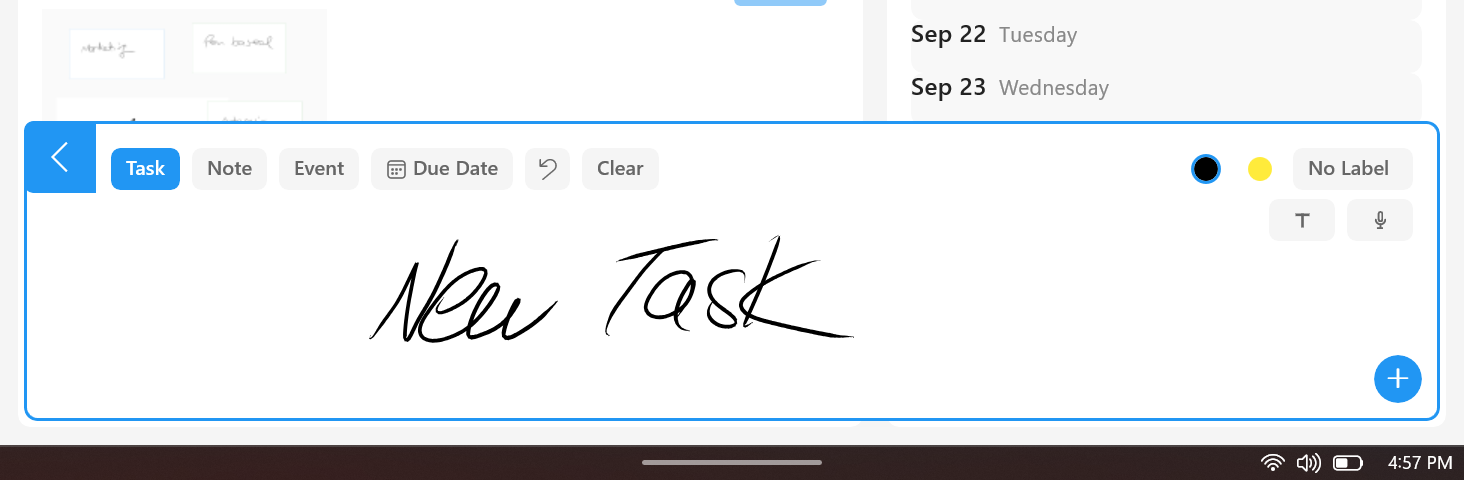
The blue + sign at the bottom left is Quick Entry - you can quickly add a task, note or calendar event.