
Canvas
Canvas provides a freeform whiteboard style 'Canvas' area for your ideas to be visualized. It's like a mini whiteboard in your pocket - draw like you do a real whiteboard and each idea you add is placed as a small card on the canvas that can be moved around, allowing you to play around and move your thoughts and ideas.
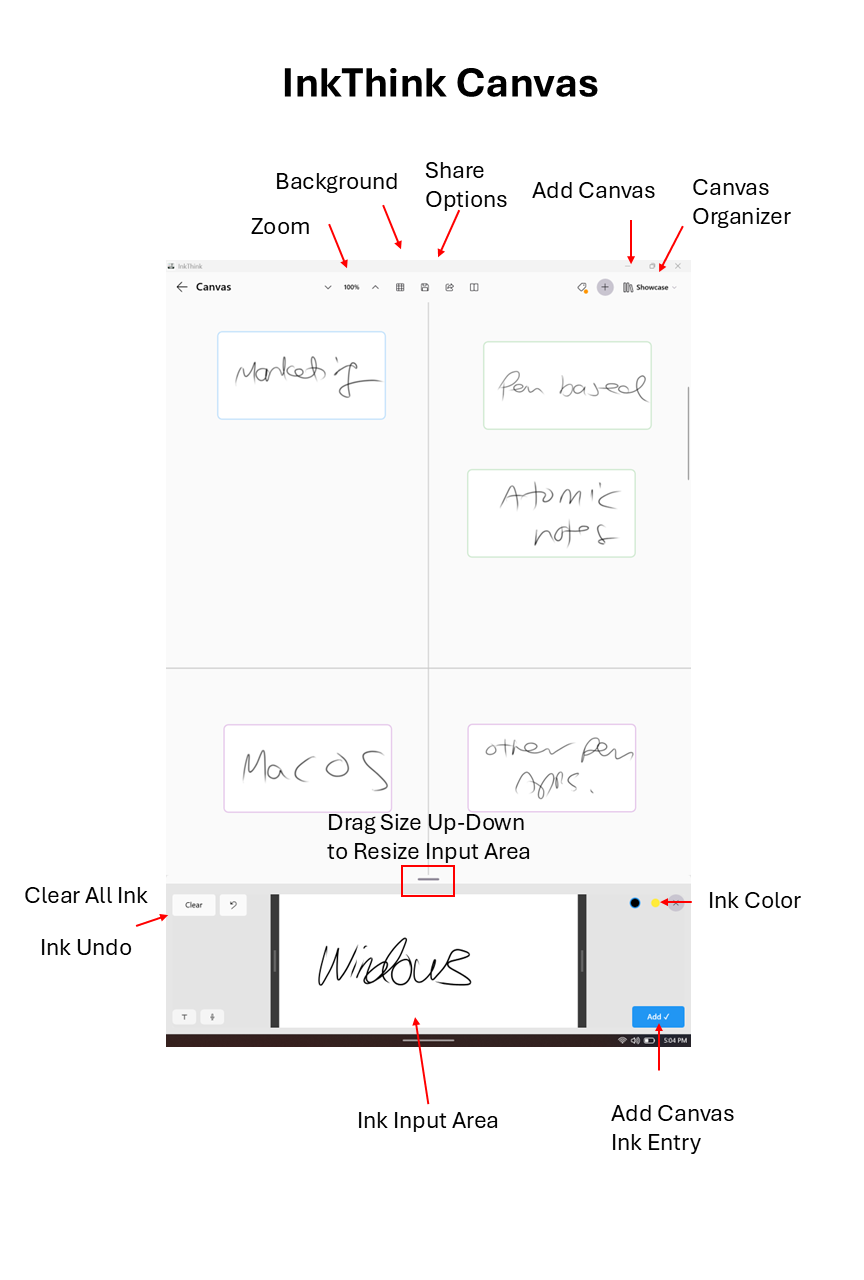
Click + to create a new Whiteboard and then add one more ink cards using the ink input area at the bottom.
You can add as many blank Canvases as you like and use the Organizer at the top to navigate through them. And you can zoom in and out if you need to add more cards onto the canvas. You can also double click on the Canvas to add a card, a quick convenience when i the flow.
Each of your Canvas 'ink' cards can be moved around like mini index cards. You can set a card boundary color, and also even share your canvas a PNG image. You can also convert a card into a task, and you can add audio on a card just like in the rest of the app. This is helpful if you are brainstorming and have a big idea you want to capture!
You can use the background icon to add background lines - either pinned to your screen view or to the whole canvas area (which might be off screen). And you can also export the canvas to be in a format where you can import as a Canvas into our sister app NoteDex.
You can also export a Canvas to be a Notebook (and you can also the reverse, export a Notebook to become a Canvas). Great to go between list <> visual layouts.
You can also label a Canvas, so that it will show in your Priority Matrix view in the notes/canvas section.