
Settings
Sign-In Syncing
If you want to sync your data across different devices, InkThink can do that.
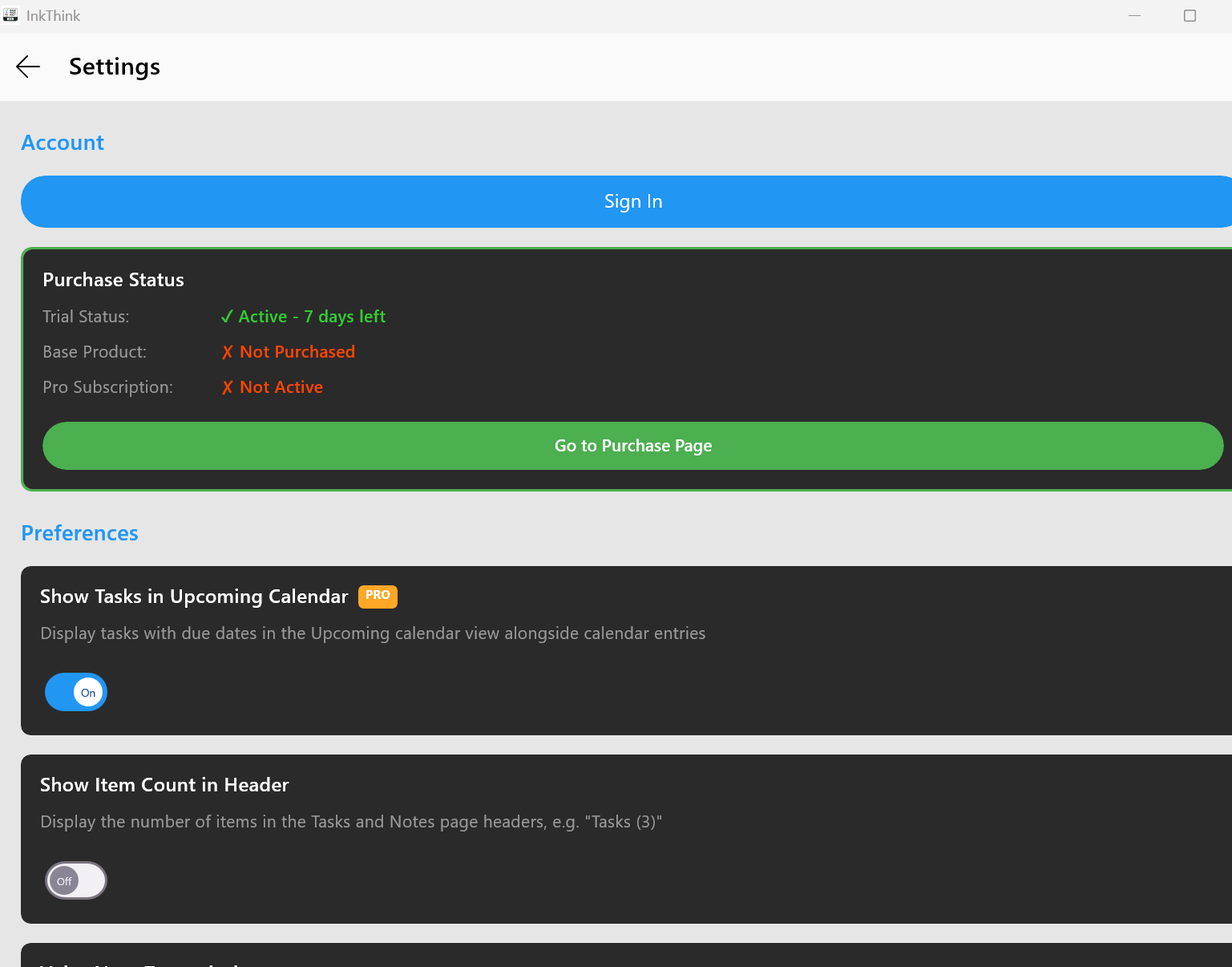
Go into settings and click the blue 'Sign In' button
At the time of writing we have Google login support. Click on that and follow the screens to authorize to use your Google login to login to InkThink.app.
Then your data will be synced to our cloud server.
Then on another device you can login again and the app will sync your data.
You can click the sync icon on the home screen at any time to perform a sync.
Purchase
You can purchase the app via the App store. There is the Base app which unlocks the core functionality and there is a Pro subscription for advanced features of the app.
Show Tasks in Upcoming Calendar
If you want to show Tasks that have a due date, switch this to on (Pro feature)
Voice Note Transcription
Turn this on and you will see a text icon to the left of your audio - and the app will transcribe audio to text (Pro feature)
Show Tasks in Upcoming Calendar
If you want to show Tasks that have a due date, switch this to ON.
Ink Configurator
We set the ink settings by default, but you can edit them here depending on your device.
View Onboarding
If you want to see the tutorial again
View Tutorials
Opens our webpage support site where we have documentation and videos
Data & Sync
We provide options for deleting your data.
Clear all Local Data (Complete Wipe)
If you are working locally, or are offline and want to reset your local database then you can Clear All Local Data. This wipes your InkThink data locally but data on the cloud is not affected.
Restore from Cloud
If you are online, and your data seems out of sync you can use this option to restore everything from the server. Your local data will be deleted and the restore will re-populate it with the latest data you have.
Delete All Data
This is a nuclear option if you want to remove all data from our system. It will delete all your data from both the server and the local app you have.